Database Setup
กรณีใช้ MS SQL Server ส่วนในกรณีใช้ MySQL หรือ Access ให้ดูเอกสารประกอบภายนอก
-
Setup SQL 2005 with default instance
-
Update latest Service Pack, for SP 1 (file size if approx 250MB, please search and download from Microsoft website, keyword are SQL2005 SP1 or KB913090, file name is SQLServer2005SP1-KB913090-x86-ENU.exe)
-
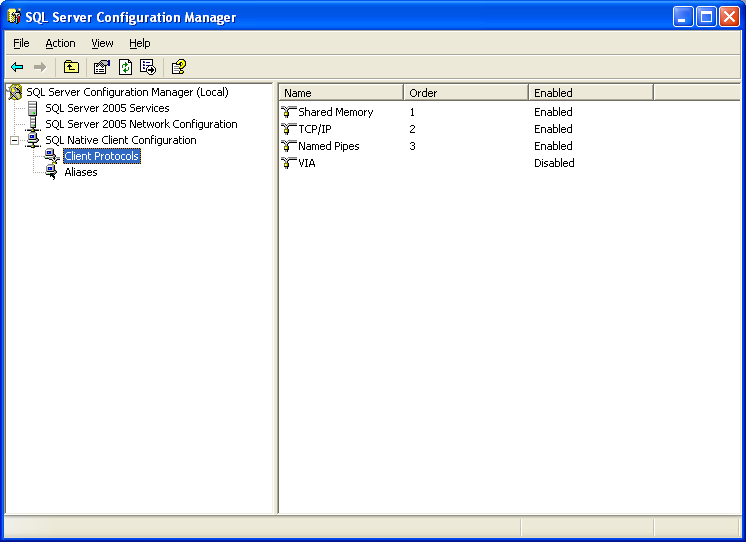
Configure SQL 2005 to Enable \'Name pipes\' and \'TCP/IP\' use
Figure: SQL Server Configuration Manager — Client Protocols: Shared Memory (Enabled), TCP/IP (Enabled), Named Pipes (Enabled), VIA (Disabled)
-
Attached database
a. Copy \'MMIReport.mdf\' and \'MMIReport_log.log\' to c:\SQLData
b. Open \'Microsoft SQL Server Management Studio\'
c. Connect to the server
d. Right click on \'Database\' select \'Attach\'
e. Click \'Add\' and browse to c:\SQLData and choose \'MMIReport\'
f. Click Ok until finish
-
Create User
a. Under \'Microsoft SQL Server Management Studio\'
b. Goto \'Security\' \'Logins\'
c. Right click on \'Logins\' choose \'New Login\'
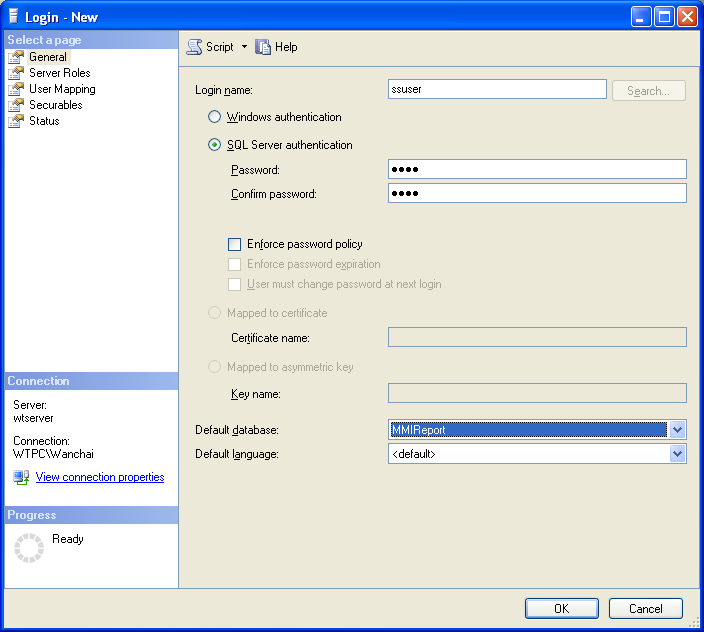
d. Input \'ssuser\' and password is \'1234\' (all input with out quote)
Figure: Login – New dialog — Login name: ssuser; ● SQL Server authentication; Default database: MMIReport
e. Click Ok
-
Enable User to Database
a. Under \'Microsoft SQL Server Management Studio\'
b. Goto \'Databases\' \'MMIReport\' \'Security\' \'Users\'
c. Remove \'ssuser\' under this tree if any
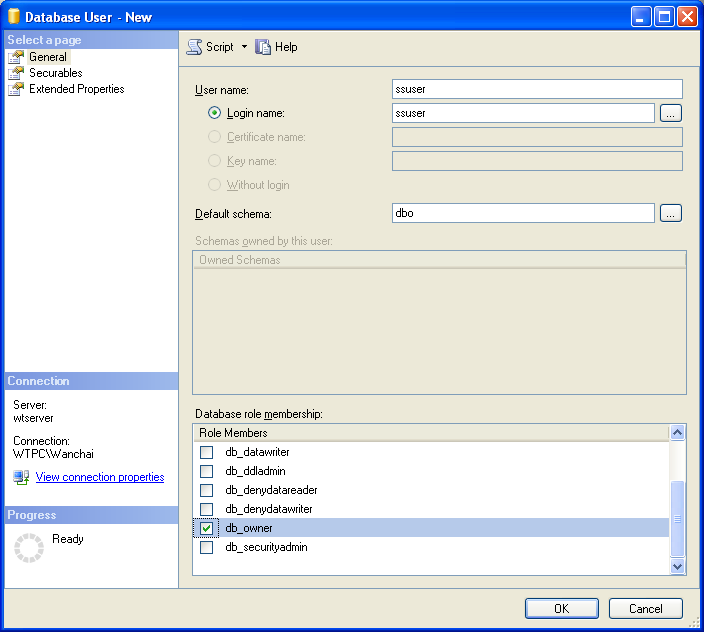
d. Right click on \'Users\' then choose \'New user\'
Figure: Database User – New dialog — User name: ssuser; Login name: ssuser; Default schema: dbo; Role membership: ☑ db_owner
e. Click ok
-
Test login the system with username \'ssuser\' and its password, it shall able to login completely
-
If not, recheck all these instruction with the error message again